Search This Blog

Showing posts with label mount. Show all posts

Friday, April 20, 2012

Mount Windows folder on Linux

Sometimes, we need to mount a Windows folder on Linux. In order to do it, let’s follow these steps:
1. Create a directory in Windows, share it and give full permission:
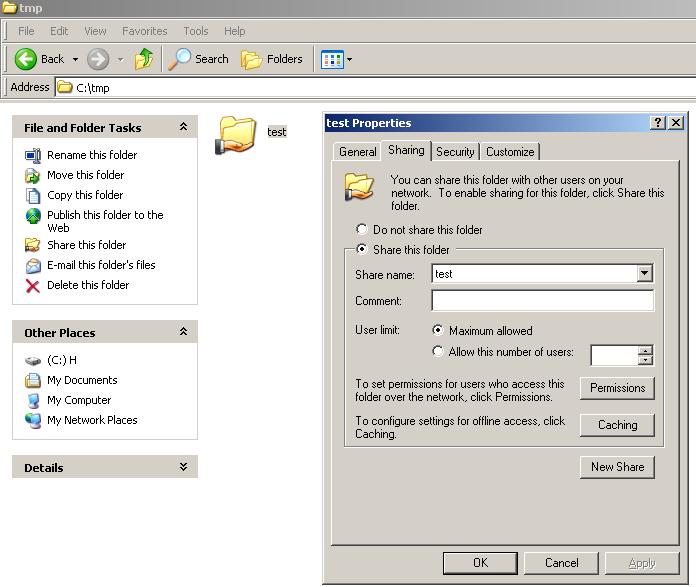
mount_1
2. Create new directory in /tmp directory on Linux, name it to “test_dir” and mount shared Windows directory into that directory by running below code:
mount -t cifs -o username=#####,password=###### //192.168.##.##/test   /tmp/test_dir
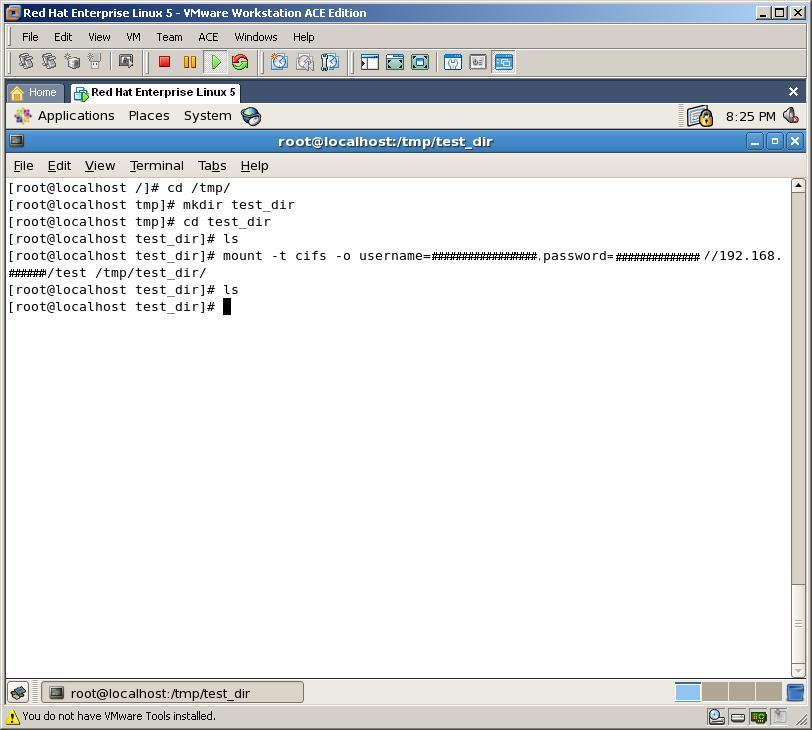
mount_23
3. Now, by creating new file and folder in Windows directory, we can get them from Linux box. Let’s create a file and a directory in Windows folder
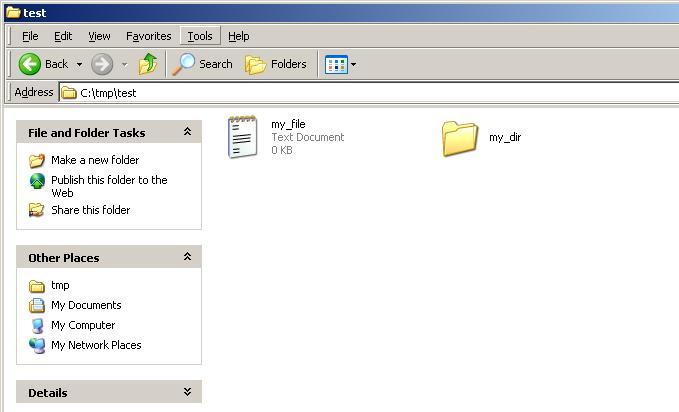
mount_3
4. At last, let’s check it from Linux, whether we can see the file and the directory or not
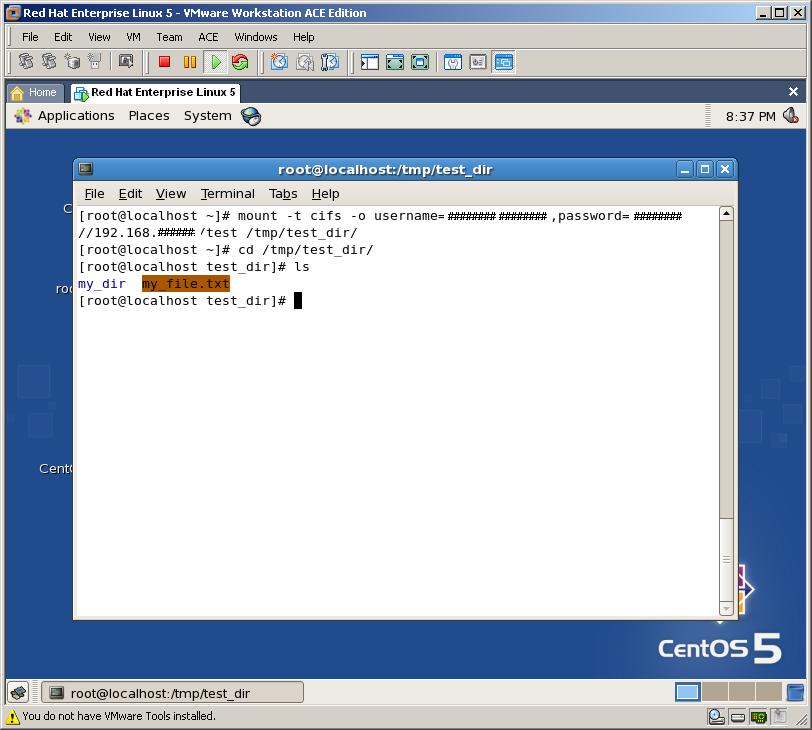
mount_4
As you can see, we can mount any Windows folder in Linux with very easy steps

Monday, November 1, 2010

Linux Hard Disk Format Command

here are total 4 steps involved for hard disk upgrade and installation procedure:

Step #1 : Partition the new disk using fdisk command

Following command will list all detected hard disks:
# fdisk -l | grep '^Disk'
Output:

Disk /dev/sda: 251.0 GB, 251000193024 bytes
Disk /dev/sdb: 251.0 GB, 251000193024 bytes

A device name refers to the entire hard disk. For more information see Linux partition naming convention and IDE drive mappings.
To partition the disk - /dev/sdb, enter:
# fdisk /dev/sdb
The basic fdisk commands you need are:
  • m - print help
  • p - print the partition table
  • n - create a new partition
  • d - delete a partition
  • q - quit without saving changes
  • - write the new partition table and exit

Step#2 : Format the new disk using mkfs.ext3 command

To format Linux partitions using ext2fs on the new disk:
# mkfs.ext3 /dev/sdb1

Step#3 : Mount the new disk using mount command

First create a mount point /disk1 and use mount command to mount /dev/sdb1, enter:
# mkdir /disk1
# mount /dev/sdb1 /disk1
# df -H

Step#4 : Update /etc/fstab file

Open /etc/fstab file, enter:
# vi /etc/fstab
Append as follows:

/dev/sdb1               /disk1           ext3    defaults        1 2

Save and close the file.

Task: Label the partition

You can label the partition using e2label. For example, if you want to label the new partition /backup, enter
# e2label /dev/sdb1 /backup
You can use label name insted of partition name to mount disk using /etc/fstab:
LABEL=/backup /disk1 ext3 defaults 1 2
Related Posts with Thumbnails