This appendix has the following sections:
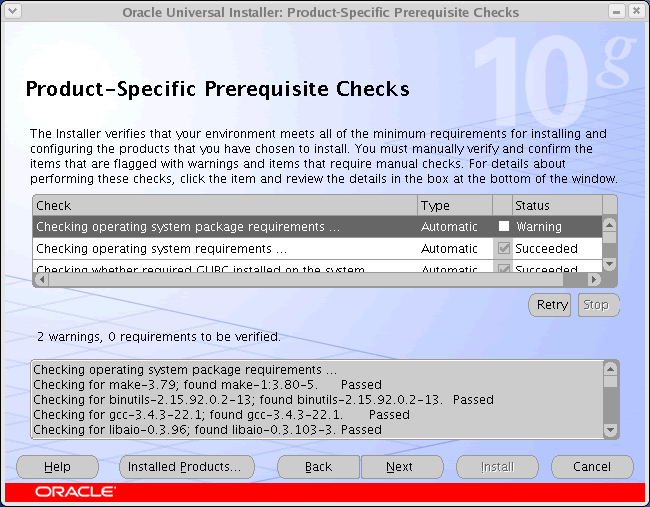
Package Requirements
The following sections list the package requirements for each platform.Required Packages on Linux
The following (or later) packages must be running on your Linux systems.Red Hat Enterprise Linux 3.0
- glibc-2.2.4-31.7
- make-3.79
- binutils-2.11.90.0.8-12
- gcc-2.96
- openmotif21-2.1.30-9
Red Hat Enterprise Linux 4.0
- glibc-2.3.4-2.9
- glibc-devel-2.3.4-2.9.i386.rpm
- make-3.79
- binutils-2.15.92.0.2-13
- gcc-3.4.3-22.1
- libaio-0.3.96
- glibc-common-2.3.4-2.9
- setarch-1.6-1
- pdksh-5.2.14-30
- openmotif21-2.1.30-11
- sysstat-5.0.5-1
- gnome-libs-1.4.1.2.90-44.1
- libstdc++-3.4.3-22.1
- libstdc++devel-3.4.3-22.1
- compat-libstdc++-296-2.96-132.7.2
- compat-db-4.1.25-9
- control-center-2.8.0-12
- xscreensaver-4.18-5.rhel4.2
Red Hat Enterprise Linux 5.x
- make-3.79
- binutils-2.14
- gcc-3.2
- libXp.so.6
SUSE Linux Enterprise Server 9
- glibc-2.2.4-31.7
- make-3.79
- binutils-2.11.90.0.8-12
- gcc-c++
- db1
- gnome-libs
- orbit
SUSE Linux Enterprise Server 10
IMPORTANT:
This platform is supported only for Enterprise Manager 10g Grid Control Release 5 (10.2.0.5).- make-3.79
- binutils-2.14
- gcc-3.2
Oracle Enterprise Linux 4
IMPORTANT:
This platform is supported only for Enterprise Manager 10g Grid Control Release 5 (10.2.0.5).- make-3.79
- binutils-2.14
- gcc-3.2
Oracle Enterprise Linux 5
IMPORTANT:
This platform is supported only for Enterprise Manager 10g Grid Control Release 5 (10.2.0.5).- make-3.79
- binutils-2.14
- gcc-3.2
Required Packages for Linux x86_64
The following (or later) package versions must be running on your Linux x86_64 systems:For Red Hat Enterprise Linux 3.0
- glibc-2.2.4-31.7
- make-3.79
- binutils-2.11.90.0.8-12
- gcc-2.96
- openmotif2.1.30-11
For Red Hat Enterprise Linux 4.0
- glibc-2.3.4-2.9
- make-3.79
- binutils-2.15.92.0.2-13
- gcc-3.4.3-22.1
- libaio-0.3.96
- glibc-common-2.3.4-2.9
- setarch-1.6-1
- pdksh-5.2.14-30
- openmotif21-2.1.30-11
- sysstat-5.0.5-1
- gnome-libs-1.4.1.2.90-44.1
- libstdc++-3.4.3-22.1
- compat-db-4.1.25-9
- control-center-2.8.0-12
- xscreensaver-4.18-5.rhel4.2
- libstdc++devel-3.4.3-22.1
- compat-libstdc++-296-2.96-132.7.2
- glibc-devel-2.3.4-2.9.i386.rpm
- libgcc-3.2.3-20.i386.rpm
- compat-gcc-7.3-2.96.122.i386.rpm
- compat-glibc-7.x-2.2.4.32.5.i386.rpm
For Red Hat Enterprise Linux 5.x
- make-3.79
- binutils-2.14
- gcc-3.2
- libXp.so.6
For SUSE Linux Enterprise Server 9
- glibc-2.2.4-31.7
- make-3.79
- binutils-2.11.90.0.8-12
- gcc-2.96
- openmotif2.1.30-11
For SUSE Linux Enterprise Server 10
- make-3.79
- binutils-2.14
- gcc-3.2
For Oracle Enterprise Linux 4
- make-3.79
- binutils-2.14
- gcc-3.2
For Oracle Enterprise Linux 5
- make-3.79
- binutils-2.14
- gcc-3.2
Required Packages on Solaris
The following (or later) package versions must be running on your Solaris systems:- SUNWarc
- SUNWbtool
- SUNWhea
- SUNWlibm
- SUNWlibms
- SUNWsprot
- SUNWsprox
- SUNWtoo
- SUNWi1of
- SUNWxwfnt
prompt> pkginfo SUNWarc SUNWbtool SUNWhea SUNWlibm SUNWlibms SUNWsprot SUNWsprox SUNWtoo SUNWi1 of SUNWxwfnt
Note:
If any packages are missing, contact your system administrator.Checking for 32-Bit and 64-Bit Application Support
Check whether or not your system is configured to support 32-bit and 64-bit applications by entering the following command:prompt> /usr/bin/isainfo -v
Required Patches
The patches required for the different Solaris versions are the following:Solaris 8
- 108652-74 or later: X11 6.4.1: Xsun patch
- 108921-18 or later: CDE 1.4: dtwm patch
- 108940-57 or later: Motif 1.2.7 and 2.1.1: Runtime library patch
- 108773-18 or later: IIIM and X input and output method patch
- 111310-01 or later: /usr/lib/libdhcpagent.so.1 patch
- 109147-26 or later: Linker patch
- 111308-04 or later: /usr/lib/libmtmalloc.so.1 patch
- 111111-03 or later: /usr/bin/nawk patch
- 112396-02 or later: /usr/bin/fgrep patch
- 110386-03 or later: RBAC feature patch
- 111023-02 or later: /kernel/fs/mntfs and /kernel/fs/sparcv9/mntfs patch
- 108987-13 or later: Patch for patchadd and patchrm
- 108528-26 or later: Kernel update patch
- 108989-02 or later: /usr/kernel/sys/acctctl and /usr/kernel/sys/exacctsys patch
- 108993-45 or later: LDAP2 client, libc, libthread and libnsl libraries patch
- 111023-02 or later: Unable to load fontset ... iso-1 or iso-15
Solaris 9
- 113096-03 or later: X11 6.6.1: OWconfig patch
- 112785-35 or later: X11 6.6.1: Xsun patch
Checking for Patches
To determine the patches that have been installed on the system, follow these steps:- Run the
showrevcommand with the-poption. The following command saves the sorted output to a file calledpatchList.
- Enter the following command:
prompt> showrev -p | sort > patchList
- Open the file in a text editor and search for the patch numbers.
Note:
If the required patches have not been installed, you can download them from http://sunsolve.sun.com.Required Packages on HP-UX PA-RISC
The following (or later) package versions must be running on your HP-UX PA-RISC systems:HP-UX PA-RISC 11i V1 (11.11)
- For installation on HP-UX PA-RISC 11.11, the following packages or later versions are required:
- HP-UX PA-RISC 11i June 2003 Consolidated Quality Patch Bundle
- Jun03GQPK11i_Aux_Patch
- HP-UX PA-RISC 11i June 2003 Consolidated Quality Patch Bundle
- Make sure that Motif 2.1 Development Environment (X11MotifDevKit.MOTIF21-PRG)B.11.11.01 is installed
Either install this package or create symbolic links as follows:
- Log in as
root.
- Change directory to
/usr/libas follows:
# cd /usr/lib
- Create the required links:
# ln -s libX11.3 libX11.sl
# ln -s libXIE.2 libXIE.sl
# ln -s libXext.3 libXext.sl
# ln -s libXhp11.3 libXhp11.sl
# ln -s libXi.3 libXi.sl
# ln -s libXm.4 libXm.sl
# ln -s libXp.2 libXp.sl
# ln -s libXt.3 libXt.sl
# ln -s libXtst.2 libXtst.sl
- Log in as
- The following patches or later are required:
- PHCO_28123, cumulative SAM patch
- PHKL_29198, Psets Enablement Patch
- PHNE_28476, Cumulative STREAMS Patch
- PHNE_28923, LAN product cumulative patch
- PHSS_28871, ld(1) and linker tools cumulative patch
- PHSS_28880, HP aC++ -AA runtime libraries (aCC A.03.50)
- PHCO_26331, mountall cumulative patch
- PHCO_29109, Pthread enhancement and fixes
- PHKL_25468, eventport (/dev/poll) pseudo driver
- PHKL_25842, Thread Abort
- PHKL_25993, thread nostop for NFS, rlimit, Ufalloc fix
- PHKL_25994, Thread NOSTOP, Psets Enablement, Ufalloc
- PHKL_25995, eventport syscalls; socket close(2); Ufalloc
- PHKL_26468, Shared mutex synchronization support patch
- PHKL_28489, copyin EFAULT, LDCD access type
- PHCO_28123, cumulative SAM patch
- To determine whether or not a bundle, a product, or file set is installed, enter a command similar to the following, where level refers to the bundle, patch or file set.
# /usr/sbin/swlist -l level |more
HP-UX PA-RISC 11i V2 (11.23)
- For installation on HP-UX PA-RISC 11.23, the following packages or later versions are required:
- Patch Bundle for HP-UX PA-RISC 11i V2 (B.11.23), September 2004
- BUNDLE11i, Revision B.11.23.0409.3
- Patch Bundle for HP-UX PA-RISC 11i V2 (B.11.23), September 2004
HP-UX PA-RISC 11i V3 (11.31)
- Base-VXFS- B.11.31
- OnlineDiag- B.11.31.01.03
Required Packages for HP-UX Itanium
The following (or later) package versions must be running on your HP-UX Itanium systems:HP-UX IA-64 11i V2 (11.23)
- For installation on HP-UX 11.23, the following packages or later versions are required:
- Patch Bundle for HP-UX 11i V2 (B.11.23), September 2004
- BUNDLE11i, Revision B.11.23.0409.3
- Patch Bundle for HP-UX 11i V2 (B.11.23), September 2004
- The following patches or later versions are required:
- PHSS_31849:linker + fdp cumulative patch
- PHSS_31852: aC++ Runtime (PA A.03.61)
- PHSS_31849:linker + fdp cumulative patch
HP-UX IA-64 11i V3 (11.31)
IMPORTANT:
This platform is supported only for Enterprise Manager 10g Grid Control Release 5 (10.2.0.5).- For installation on HP-UX 11.31, the following packages or later versions are required:
- BUNDLE-B.11.31
- BUNDLE-B.11.31
- The following operating system patches or later versions are required:
- PHKL_35936
- PHKL_35936
Required Packages on AIX
The follwoing packages must be running on your AIX systems:AIX 5L Version 5.2
The following file sets must be installed and committed:- bos.perf.libperfstat
- bos.perf.proctools
- IY43980: libperfstat.h not ANSI-compliant
- IY44810: DSI IN BMRECYCLE
- IY45462: Definition of isnan() in math.h incorrect
- IY45707: J2 READAAHEAD/CIO INTERACTION
- IY46214: dropping partial connections leaves them on so_q0
- IY46605: exec of 32 bit application can fail on 64 bit kernel
- IY51801: race condition in aio_nwait_timeout
AIX 5L Version 5.3
The following file sets must be installed and committed:- bos.perf.libperfstat
- bos.perf.proctools
- IY70159: KRTL relocation problem
- IY68989: write to mmapped space hangs
AIX 6L Version 6.1
IMPORTANT:
This platform is supported only for Enterprise Manager 10g Grid Control Release 5 (10.2.0.5).- bos.adt.base-0.0
- bos.adt.lib-0.0
- bos.adt.libm-0.0
- bos.perf.libperfstat-0.0
- bos.perf.perfstat-0.0
- bos.perf.proctools-0.0
- rsct.basic.rte-0.0
- rsct.compat.clients.rte-0.0
- xlC.aix61.rte-9.0.0.0
- xlC.rte-9.0.0.0
To Verify Whether the Filesets Are Installed and Committed
To determine whether or not the required file sets are installed and committed, execute the foollowing command:# lslpp -l bos.adt.base bos.adt.lib bos.adt.libm \ bos.perf.perfstat bos.perf.libperfstat
Note:
If a file set is not installed and committed, you need to install it. Refer to your operating system or software documentation for information on handling file sets.Verify Whether or Not APAR is Installed
To determine whether or not an authorized program analysis report (APAR) is installed, execute the following command:# /usr/sbin/instfix -i -k " IY43980, IY44810,..."
Note:
If an APAR is not installed, you need to install it. For installing and downloading the APAR, refer to: https://techsupport.services.ibm.com/server/aix.fdc
Kernel Parameter Requirements
The following sections list the kernel parameter requirements for each platform.Kernel Parameter Requirements on Linux
The systems must have at least the following recommended kernel parameters:Red Hat Enterprise Linux 3.0, SUSE Linux Enterprise Server 9, and SUSE Linux Enterprise Server 10
- semmsl = 250
- semmns = 32000
- semopm = 100
- semmni = 128
- shmmax = 2147483648
- shmmni = 4096
- shmall = 2097152
- shmmin = 1
- shmseg = 10
- filemax = 65536
Red Hat Enterprise Linux 4.0, Red Hat Enterprise Linux 5.x, Oracle Enterprise Linux 4, and Oracle Enterprise Linux 5
- semmsl = 250
- semmsl2 = 250
- semmns = 32000
- semopm = 100
- semmni = 128
- shmmax = 536870912
- shmmni = 4096
- shmall = 2097152
- filemax = 65536
- ip_local_port_range = 1024 65000
- rmem_default = 262144
- rmem_max = 262144
- wmem_default = 262144
- wmem_max = 262144
Table D-1 Execute Commands to Check Kernel parameter Settings
| Parameter | Command |
|---|---|
| semmsl, semmns, semopm, semmni | # /sbin/sysctl -a | grep semFoot 1 |
| shmall, shmmax, shmmni | # /sbin/sysctl -a | grep shm |
| file-max | # /sbin/sysctl -a | grep file-max |
| ip_local_port_range | # /sbin/sysctl -a | grep ip_local_port_range |
| rmem_default | # /sbin/sysctl -a | grep rmem_default |
| rmem_max | # /sbin/sysctl -a | grep rmem_max |
| wmem_default | # /sbin/sysctl -a | grep wmem_default |
| wmem_max | # /sbin/sysctl -a | grep wmem_max |
Footnote 1 This command displays the value of the four semaphore parameters in the order listed.
To change your kernel parameter settings, use any text editor to create or edit the /etc/sysctl.conf file to add or modify the necessary entries. You may need to restart your system after changing kernel parameters.Note:
Include lines only for the kernel parameter values that you want to change. For the semaphore parameters (kernel.sem), you must specify all four values in order. If the current value of any of your system's kernel parameters is higher than the recommended value, keep your current value./etc/sysctl.conf file may look like this:kernel.shmall = 2097152 kernel.shmmax = 536870912 kernel.shmmni = 4096 kernel.sem = 250 32000 100 128 fs.file-max = 65536 net.ipv4.ip_local_port_range = 1024 65000 rmem_default = 262144 rmem_max = 262144 wmem_default = 262144 wmem_max = 262144By specifying the values in the
/etc/sysctl.conf file, they persist when you restart the system.On SUSE systems only, enter the following command to ensure that the system reads the
/etc/sysctl.conf file when it restarts:# /sbin/chkconfig boot.sysctl on
Kernel Parameter Requirements on Linux x86_64
The systems must have at least the following recommended kernel parameters:Red Hat Enterprise Linux 3.0, SUSE Linux Enterprise Server 9, SUSE Linux Enterprise Server 10
- semmsl = 250
- semmns = 32000
- semopm = 100
- semmni = 128
- shmmax = 2147483648
- shmmni = 4096
- shmall = 2097152
- shmmin = 1
- shmseg = 10
- filemax = 65536
Red Hat Enterprise Linux 4.0, Red Hat Enterprise Linux 5.x, Oracle Enterprise Linux 4.0, Oracle Enterprise Linux 5.0
- semmsl = 250
- semmsl2 = 250
- semmns = 32000
- semopm = 100
- semmni = 128
- shmmax = 536870912
- shmmni = 4096
- shmall = 2097152
- filemax = 65536
- ip_local_port_range = 1024 65000
- rmem_default = 262144
- rmem_max = 262144
- wmem_default = 262144
- wmem_max = 262144
Kernel Parameter Requirements on Solaris
The system must have at least the following recommended kernel parameters:Solaris 8 and 9
Verify that the following kernel parameters have been set to a equal to or greater than the value specified in Table D-2.Table D-2 Recommended Kernel Parameter Values for Solaris 8 and 9
| Parameter | Recommended Value |
|---|---|
| semsys:seminfo_semmni | 100 |
| semsys:seminfo_semmsl | 256 |
| shmsys:shminfo_shmmax | 4294967295 |
| shmsys:shminfo_shmmin | 1 |
| shmsys_shminfo_shmmni | 100 |
| shmsys:shminfo_shmseg | 10 |
| semsys:seminfo_semvmx | 32767 |
| noexec_user_stack | 1 |
Note:
The following parameters are obsolete in Solaris 9: -
shmsys:shminfo_shmmin
-
shmsys:shminfo_shmseg
Solaris 10
On Solaris 10, verify that the kernel parameters shown in Table D-3 are set to values equal to or greater than the recommended values. Table D-3 also lists the resource controls that replace the /etc/system file for a specific kernel parameter.Table D-3 Recommended Kernel Parameter Values for Solaris 10
| Parameter | Resource Control | Recommended Values |
|---|---|---|
| noexec_user_stack | NA | 1 |
View and Change Kernel Parameter Values on Solaris 8 and 9
To view the current values of the kernel parameters, enter the following commands:# grep noexec_user_stack/etc/system # /usr/sbin/sysdef | grep SEM # /usr/sbin/sysdef | grep SHMTo change any of the current values, follow these steps:
- Create a backup copy of the
/etc/systemfile, by using a command similar to the following:
# cp /etc/system/etc/system.orig
- Open the /
etc/systemfile in any text editor, and if required, add lines similar to the following (edit the lines if the file already contains them):
set semsys:seminfo_semmni=  100
set semsys:seminfo_semmsl        =256
set shmsys:shminfo_shmmax        =4294967295
set shmsys:shminfo_shmmin        =1
set shmsys_shminfo_shmmni= 100
set shmsys:shminfo_shmseg        =10
set semsys:seminfo_semvmx        =32767
set noexec_user_stack     =1
- Enter the following command to restart the system
# /usr/sbin/reboot
- After you have restarted the system, log in to the system and switch to the
rootuser.
View and Change Kernel Parameter Values on Solaris 10
To view the current values of the resource control, enter the following commands:#id -p //to verify the project ID uid = 0 (Root) gid = 0 (Root) projid = 1 (user.root) #prctl -n project.max-shm-memory -i project user.root #prctl -n project.max=sem-ids -i project user.rootTo change any of the current values, follow these steps:
- To modify the value of
max-shm-memoryto 6GB:
#prctl -n project.max-shm-memory -v 6gb -r -i project user.root
- To modify the value of
max-sem-idsto 256:
#prctl -n project.max-sem-ids -v 256 -r -i project user.root
Kernel Parameter Requirements on HP-UX
Verify that the kernel parameters listed in Table D-4 are set to the values greater than or equal to the recommended value shown. The procedure following Table D-4 describes how to verify and set the values.Table D-4 Recommended Kernel Parameter Values for HP-UX
| Parameter | Recommended Value |
|---|---|
| ksi_alloc_max | 32768 |
| max_thread_proc | 256 |
| maxdsiz | 1073741824 |
| maxdsiz_64bit | 2147483648 |
| maxssiz | 134217728 |
| maxssiz_64bit | 1073741824 |
| maxswapchunks | 16384 |
| maxuprc | 3687 |
| msgmap | 4098 |
| msgmni | 4096 |
| msgseg | 32767 |
| msgtql | 4096 |
| ncsize | 34816 |
| nfile | 63488 |
| nflocks | 4096 |
| ninode | 34816 |
| nkthread | 7184 |
| nproc | 4096 |
| semmap | 4098 |
| semmni | 4096 |
| semmns | 8192 |
| semmnu | 4092 |
| semvmx | 32767 |
| shmmax | 1073741824 |
| shmmni | 512 |
| shmseg | 120 |
| vps_ceiling | 64 |
Note:
The following parameters are obsolete in HP-UX 11.23: -
maxswapchunks
-
semmap
View and Change Kernel Parameter Values
To view the current value of these kernel parameters, and to change them, if necessary, follow these steps:- Set the DISPLAY environment variable to specify the display of the local system. This is an optional step.
Bourne, Bash or Korn shell:
$ DISPLAY=localhost:0.0; export DISPLAY
C Shell
$ setenv DISPLAY localhost:0.0
- Start System Administration Manager (SAM)
# /usr/sbin/sam
- Choose the Kernel Configuration area and the Configurable Parameters area.
- Check the value or formula specified for each of these parameters and if necessary, modify that value or formula. Refer to the SAM Online Help for more details.
- Exit from SAM.
- If you have modified the value for any of the parameters, you must restart your system.
# /sbin/shutdown -r now
- After you have restarted the system, log in and switch to the
rootuser if necessary.
Kernel Parameter Requirements on HP-UX Itanium
Verify that the kernel parameters listed in Table D-5 are set to the values greater than or equal to the recommended value shown.Table D-5 Recommended Kernel Parameter Values on HP-UX Itanium
| Parameter | Recommended Value |
|---|---|
| ksi_alloc_max | 32768 |
| max_thread_proc | 256 |
| maxdsiz | 1073741824 |
| maxdsiz_64bit | 2147483648 |
| maxssiz | 134217728 |
| maxssiz_64bit | 1073741824 |
| maxuprc | 3687 |
| msgmni | 4096 |
| msgseg | 32767 |
| msgtql | 4096 |
| ncsize | 34816 |
| nfile | 63488 |
| nflocks | 4096 |
| ninode | 34816 |
| nkthread | 7184 |
| nproc | 4096 |
| semmni | 4096 |
| semmns | 8192 |
| semmnu | 4092 |
| semvmx | 32767 |
| shmmax | 1073741824 |
| shmmni | 512 |
| shmseg | 120 |
| vps_ceiling | 64 |
Configure Shell Limits and System Configuration Parameters on AIX
On AIX systems, you do not need to configure the kernel parameters. However, Oracle recommends that you set shell limits and system configuration parameters as described in this section.Configuring Shell Limits
Verify that the shell limits shown in Table D-6 are set to the values shown. The procedure following the table describes how to verify and set the values.Table D-6 Shell Limits
| Shell Limit (as shown in smit) | Recommended Value |
|---|---|
| Soft FILE size | -1 (Unlimited) |
| Soft CPU size | -1 (Unlimited) |
| Soft DATA segment | -1 (Unlimited) |
| Soft STACK size | -1 (Unlimited) |
- Execute the following command:
# smit chuser
- In the User Name field, specify the user name of the Oracle software owner, for example
oracle.
- Scroll down the list and verify whether the value for the soft limits is
-1. If not, edit the existing value as recommended in Table D-6.
- When you have finished making changes, press F10 to exit.
Specifying System Configuration Parameters
Ensure the maximum number of processes allowed per user is set to 2048 or higher. The following procedure describes how to verify and set the value.To specify the system configuration parameters:
- Execute the following command:
# smit chgsys
- Ensure the value shown for Maximum Number of Processes allowed per user is greater than or equal to 2048. If not, edit the existing value.
- When you have finished making changes, press F10 to exit.